
 Buy on Amazon
Set up in SmartLife
Create an Google Routine in Google Home

Pair the doorbell extender with the SmartLife app
Link the SmartLife & your doorbell brand's app to Alexa
Create a routine in Alexa

Required for automation


Many customers have asked about this issue, and some even left negative feedback.
We would like to clarify again:
Our extender works 100% normally WITHOUT any subscription fees!
The subscription section in the app has nothing to do with the basic function of our extender.
Please do NOT select or subscribe to any paid plans.
Yes, absolutely! We designed this chime to be hassle-free. You DO NOT need to be a tech wizard or go into your router settings to separate your 2.4GHz and 5GHz bands. Simply connect to your regular home Wi-Fi, and the chime will automatically find and connect to the 2.4GHz signal it needs.
While 5GHz is great for streaming movies on your TV, it doesn't travel well through walls. 2.4GHz has a much longer range and easily penetrates walls and floors. Since this is a doorbell chime that needs to receive signals across your house, 2.4GHz is actually the most reliable and standard choice for smart home devices!
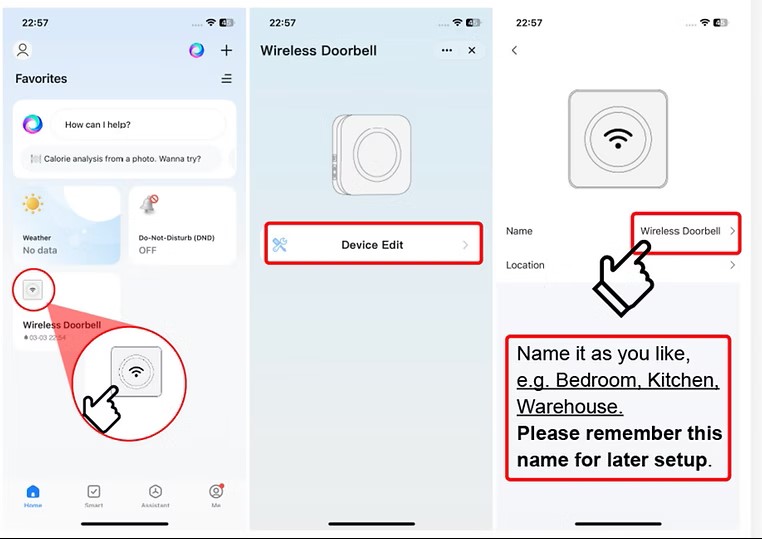
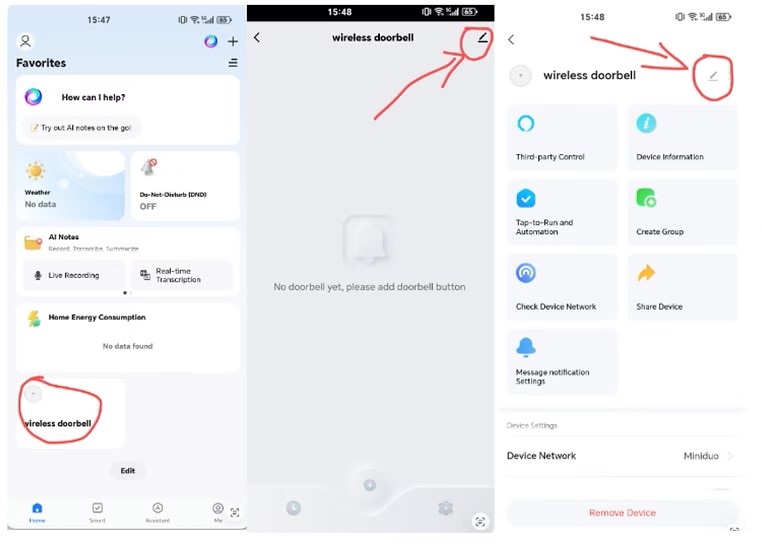
The renaming interface may vary slightly depending on the version.
Open the SmartLife app, tap your extender, go to Edit Device, then rename your device.
Open the SmartLife app, tap your extender, then tap the edit icon in the top right corner and select the option to rename your device.
Yes! First, make sure you have successfully set up one extender. Then, you only need two steps to add a second extender.
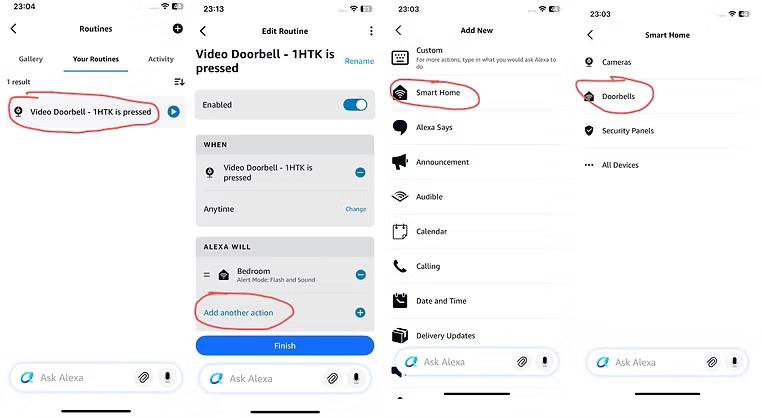
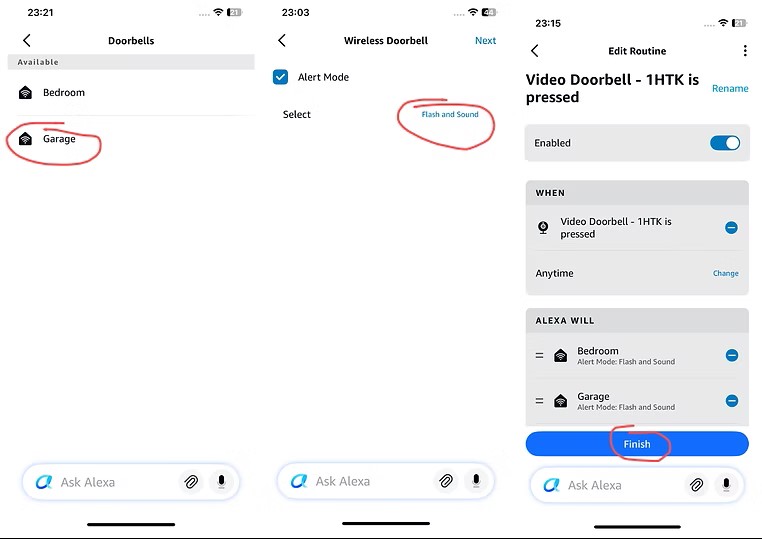
This is because the display location varies across different versions of Alexa. We recommend updating to the latest version.
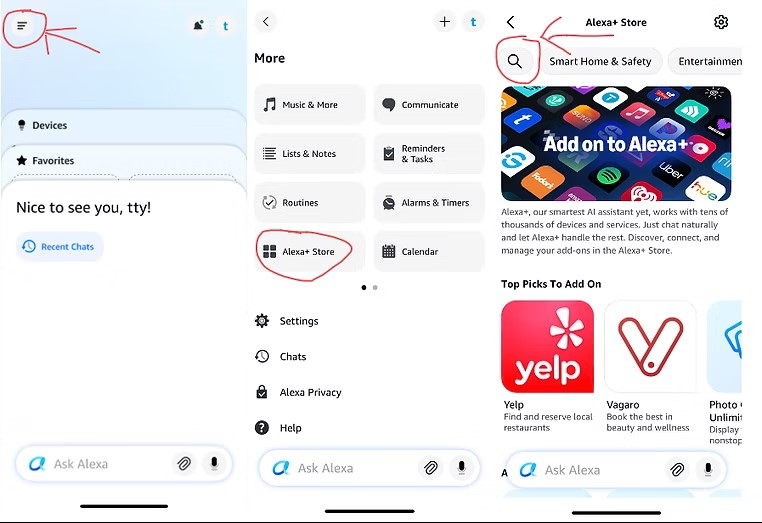
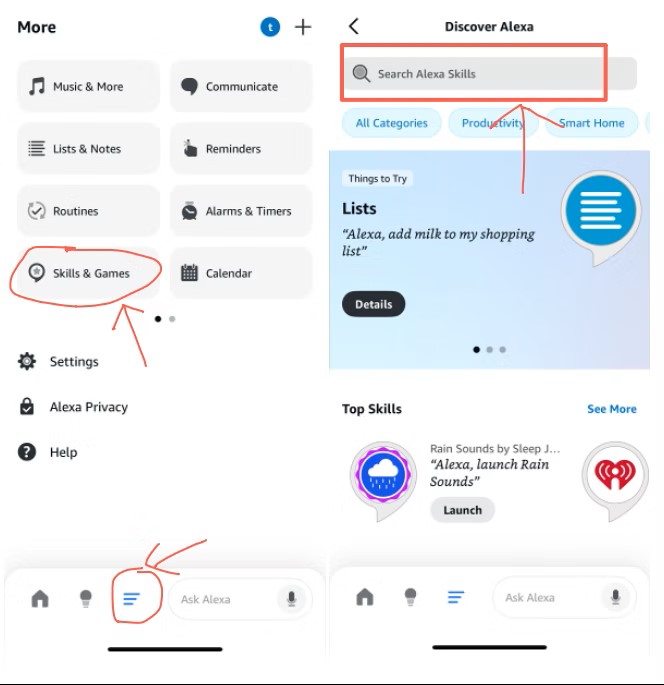
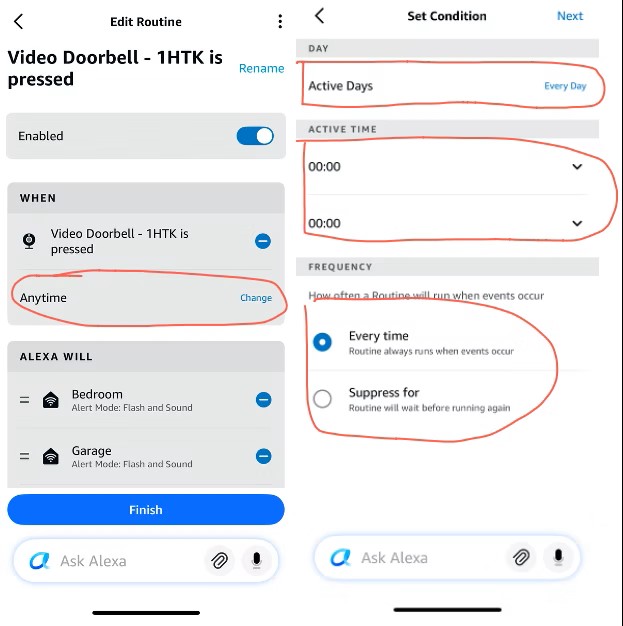
Of course, there are many places you can DIY. I've listed some here, and you can use your creativity to explore more together.
Normally, the routine we set up in Alexa is:
When the doorbell is pressed, I receive a ringtone.
What I want to share is:
If your video doorbell version allows it, you can also set it to:
When the motion sensor of your video doorbell detects movement, I receive a ringtone.
This way, you will get a ringtone notification whenever someone or something moves in front of your video doorbell.
This gives you better alerts and security.
Of course, this feature depends on whether your video doorbell supports it.
24/7 Customer Support